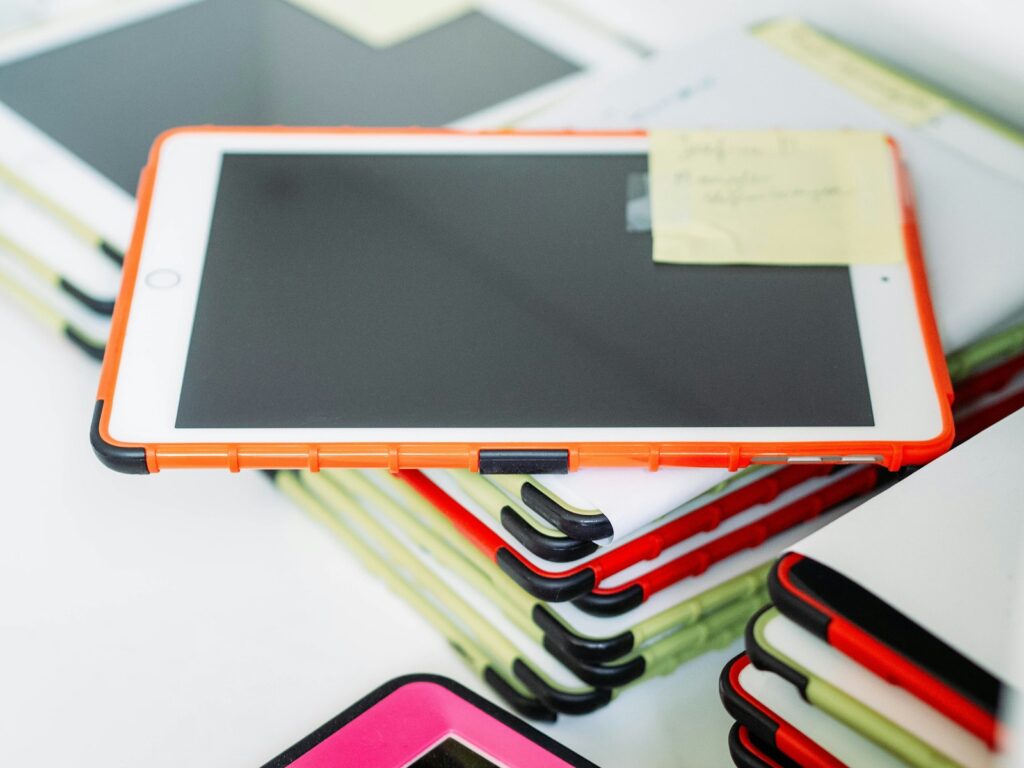
An iPad in a classroom isn’t just a smaller laptop. Apple Pencil support, split-screen multitasking, and management tools built for schools change what’s actually practical to do with a tablet in front of twenty-five kids. If you already have iPads in your classroom, or you’re deciding whether they’re worth the investment, here’s a closer look at the apps that take advantage of what the iPad specifically does well, rather than apps that just happen to have an iPad version.
Explain Everything
Explain Everything is an interactive whiteboard app built around recording your own voice and handwriting as you work through a problem on screen, which teachers use to create reusable video lessons or let students record their own explanations of how they solved something. Because it supports Apple Pencil for natural handwriting and drawing, it’s a genuinely different experience than trying to annotate on a laptop trackpad.
Book Creator
Book Creator lets students build multimedia books that combine text, drawings, photos, audio recordings, and video into pages they design themselves, which turns a writing assignment into something closer to publishing a real project. Students can use the Apple Pencil to illustrate pages directly, and finished books can be shared as ePub files or read aloud within the app, which is especially useful for younger readers or English language learners building confidence.
Seesaw
Seesaw is a student portfolio app where kids document their own learning with photos, videos, drawings, and voice notes rather than only submitting typed assignments. On iPad specifically, the drawing and annotation tools work smoothly with Apple Pencil, so a student can photograph a math worksheet and then draw directly on top of it to show their work, or record themselves narrating a science observation.
Apple Classroom
Apple Classroom is Apple’s own classroom management app, and it only exists because of the iPad’s specific device ecosystem. It lets a teacher see every student’s iPad screen at once from their own device, lock screens to bring attention back to the front of the room, launch the same app or webpage on every iPad simultaneously, and open a specific student’s screen to help them without walking across the room. It requires the school to be set up with Apple School Manager, which handles device enrollment and app distribution across a class set of iPads, so it’s typically something the IT department configures rather than an individual teacher installing on their own.
GoodNotes
GoodNotes is a handwriting and note-taking app that many teachers use for grading PDFs directly with Apple Pencil, marking up worksheets and essays the same way they would with a physical red pen, except everything stays digital and searchable. Students use it the same way for taking notes by hand during lessons, which research on handwriting versus typing suggests can help with retention for some learners. The app’s ability to convert handwriting to searchable text and organize notebooks by subject makes it more than a basic notes app once a class actually adopts it.
Kahoot!
Kahoot! turns quiz review into a live, competitive game that the whole class plays at once from their own devices, which works especially well on iPad’s larger screen compared to a phone. Teachers build or pull from existing quizzes, launch a live game, and students answer in real time while a leaderboard tracks results — it’s built for short, high-energy review sessions rather than sustained independent work.
Nearpod
Nearpod converts a regular slide-based lesson into something interactive, embedding polls, open-ended questions, and quizzes directly into the presentation so a teacher can see who’s following along while the lesson is still happening. On iPad, split-screen support means a teacher can run the presenter view alongside another app, and Nearpod also includes some AR and VR-style content that’s more natural to explore on a touchscreen tablet than a laptop.
Why iPad Specifically Matters for These Apps
The apps above lean on things that are either exclusive to iPad or work meaningfully better on it than on other devices. Apple Pencil support is the biggest differentiator — handwriting, drawing, and direct annotation on a worksheet or PDF simply isn’t the same experience with a mouse or a laptop trackpad, and several of the apps above (Explain Everything, Book Creator, Seesaw, GoodNotes) are built around that kind of direct-touch interaction.
Split-screen and Slide Over multitasking also matter more in a classroom setting than people usually expect — a student can have a reading passage open in one app while taking notes in another, or a teacher can run a presentation in one window while managing Apple Classroom in a Slide Over panel. And the classroom management layer — Apple School Manager provisioning devices and apps at scale, Apple Classroom giving teachers a live view across the room — is an iPad-specific ecosystem feature that Android or Chromebook classrooms handle very differently, if at all.
Frequently Asked Questions
Do I need an Apple Pencil for these apps to be useful?
Not for all of them — Kahoot! and Nearpod work fine with just touch input. But apps built around handwriting or drawing, like GoodNotes, Explain Everything, and the illustration features in Book Creator and Seesaw, are noticeably better with an Apple Pencil than with a finger alone.
Does my school need Apple School Manager to use Apple Classroom?
Yes, Apple Classroom’s full functionality — seeing student screens, locking devices, launching apps across the room — depends on devices being enrolled through Apple School Manager, which is typically set up by a school or district’s IT team rather than an individual teacher.
Are these apps free?
It varies by app and has changed over time, so check the App Store listing for current pricing before assuming a tier is free or paid — several of these offer free versions with paid upgrades for additional storage, features, or removing limits on the number of projects.
Can these apps replace a Chromebook classroom setup?
They’re not a drop-in replacement since the two ecosystems work differently — Chromebooks lean on browser-based Google Workspace tools, while these iPad apps lean on native touch and pencil input plus Apple’s own device management. Which fits better usually comes down to what your school has already invested in and what kind of work students are doing.
None of these apps require a full classroom overhaul to try — picking one that solves an actual problem, whether that’s messy handwritten annotation, building a whole-class quiz, or getting a clearer view of what every student is doing on their screen, is a reasonable place to start. For a broader look at classroom apps beyond just iPad, see our roundup of the best apps for teachers to enhance learning.

The Apps Zone is your go-to resource for discovering the best mobile apps across all categories. We provide expert reviews, tips, and recommendations to help you make the most of your smartphone or tablet. Whether you’re looking for productivity tools, entertainment options, or learning resources, we’ve got you covered!